

Call us on 0800 878 878 for more info


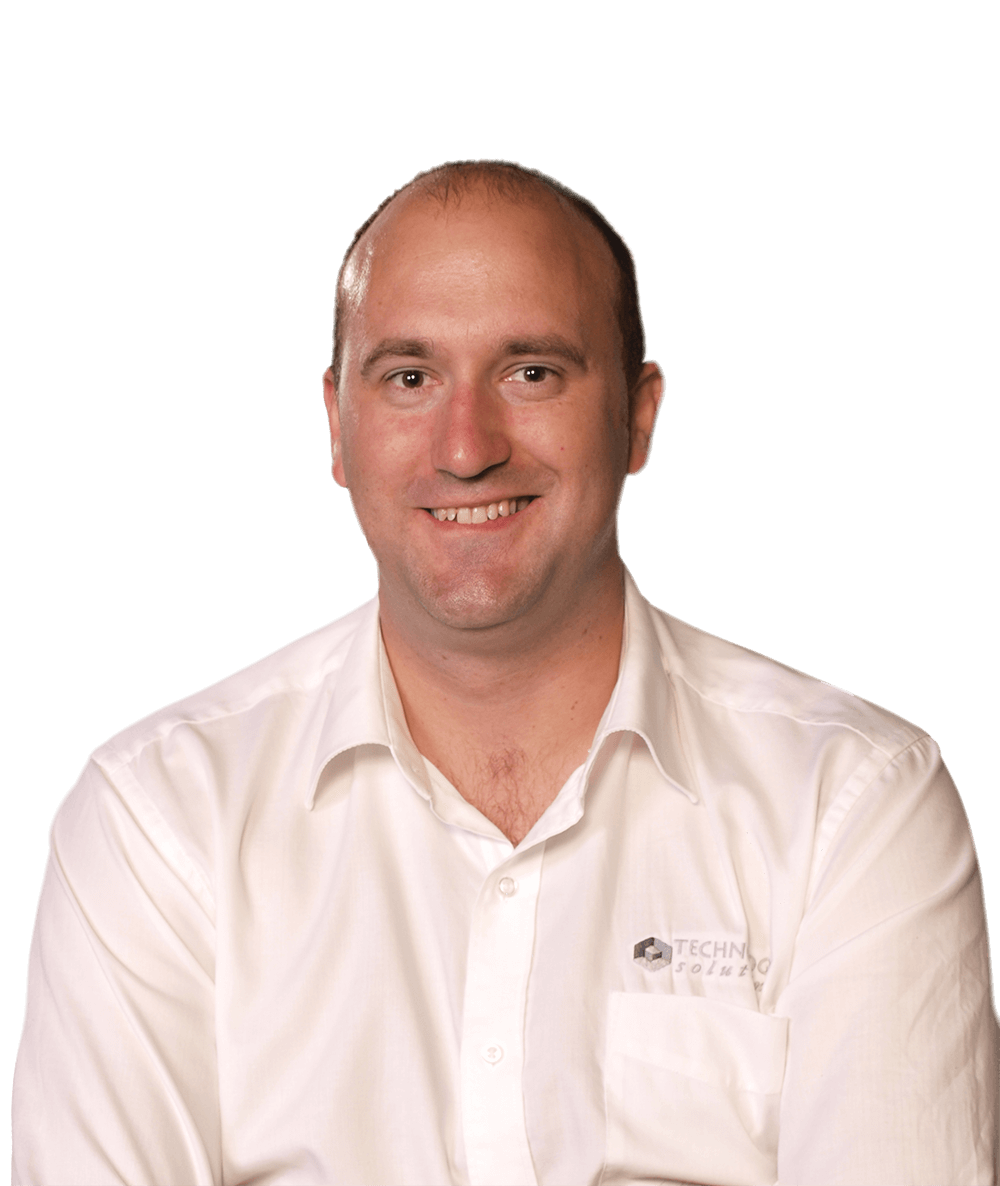
We have the Wairarapa's only Apple Certified Technician
For Apple jobs including repairs, new Installations. PC to Mac migration, iPad and iPhone support, networking and training.

We design, build and host websites and apps.
We like to create unique websites that are best suited to your business and goals
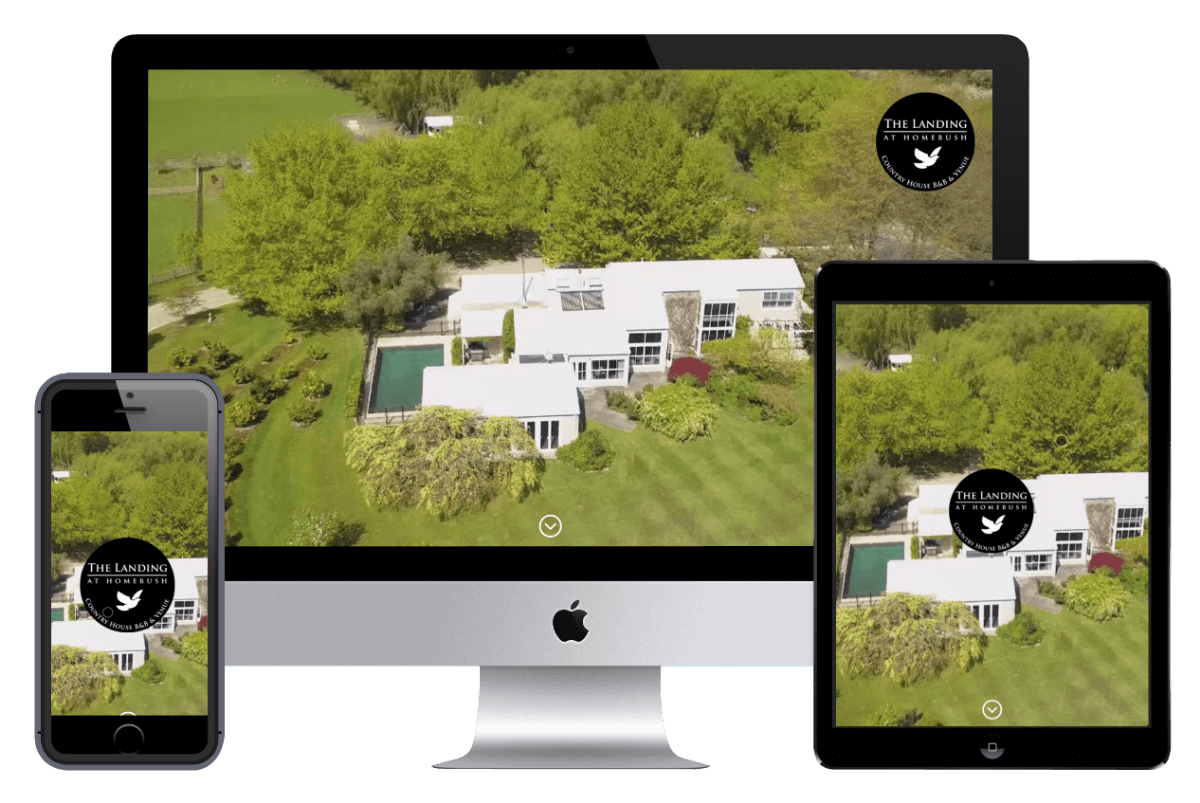
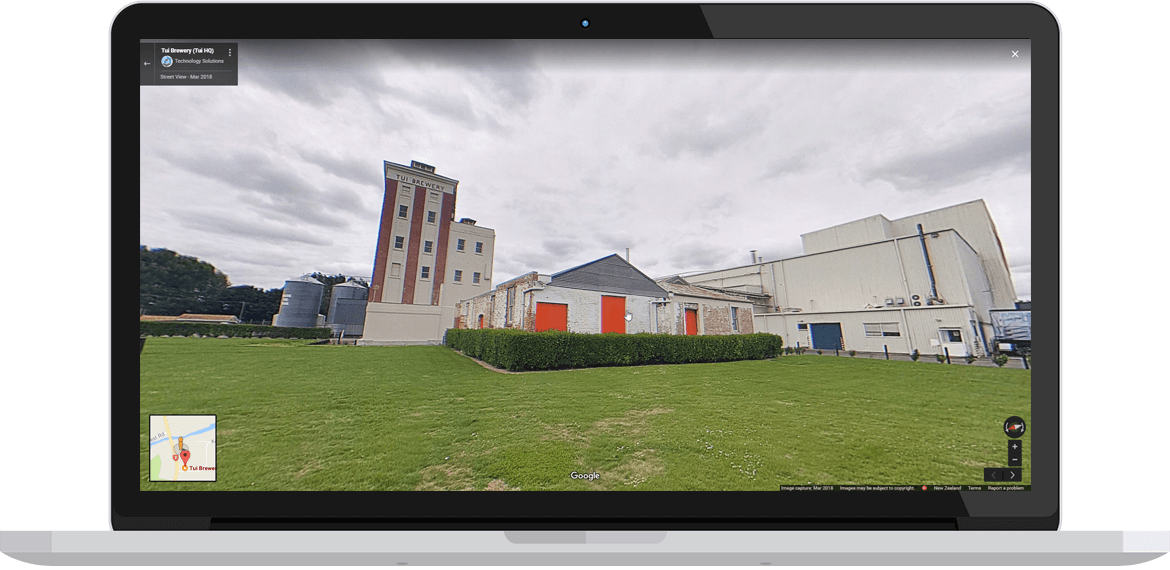
360° Virtual Tours
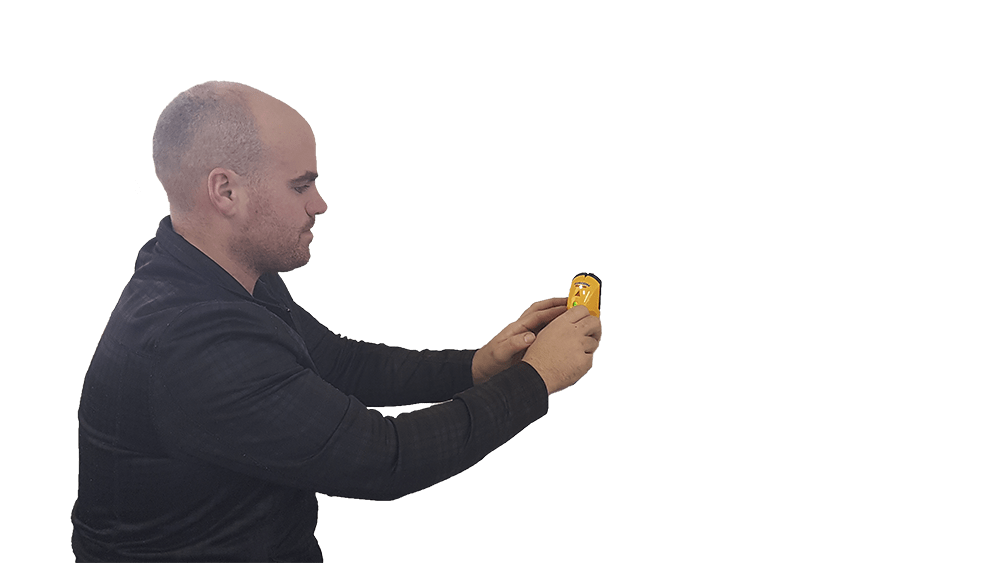
We have a dedicated cabling and phone installer
For all those fiddly jobs where the cable isn't quite there, we've got the solution
Security Cameras (CCTV)
We design, upgrade and install CCTV camera solutions for both Home and business clients.

Tech Solutions provides total IT support to big and small businesses in all industries.
Our customers trust us to provide 24/7 managed services and computer networking. We look after their day-to-day tech needs and keep their networks secure. Companies choose us for our experience, responsiveness and credibility.
Our clients include businesses and organisations from all sectors in the Wairarapa region. Small to Medium Businesses, Professional Service Companies, Local Goverment, Corporates, Healthcare, Hotels and Restaurants, Non Profit Organisations, Colleges & Schools.
WE ARE COMMITTED TO OUTSTANDING SERVICE AND SUPPORT

Years of combined IT experience

In business for 44 years

Cups of Coffee drunk p.a.
Proactive IT Support
Technology Solutions have a number of staff who have a role keeping an eye on our customers core infastructure and reporting on any issues that may crop up so we can catch them before they affect business.
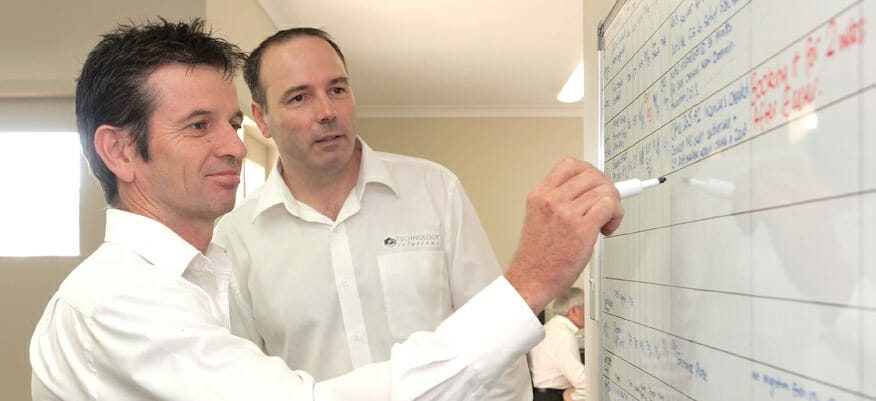
IT Strategic Planning Services
In todays technological landscape your business may require technology leadership and advice from an external source. Our team of qualified Solutions Architects can help provide an IT perspective to your visions.
Backup and Data Recovery
Data is the heart of your enterprise and it is crucial for you to protect it. The Implementation of a data backup and recovery plan is the best and only way to ensure protection of your organisation’s data.